How to Automatically Delete Chrome History for Specific Websites
Clear Cache Chrome · Tech Product Partners KFT.
To auto-delete history for specific websites in Chrome, use Clear Cache Chrome's surgical history cleaning: target domains or URL patterns and remove only those entries — not your entire browsing timeline. Combine with automation triggers for hands-free privacy.
Full history wipe is overkill
Privacy-conscious users often want to hide visits to specific sites — health portals, sensitive research, personal accounts — without nuking work-related history they rely on for autocomplete.
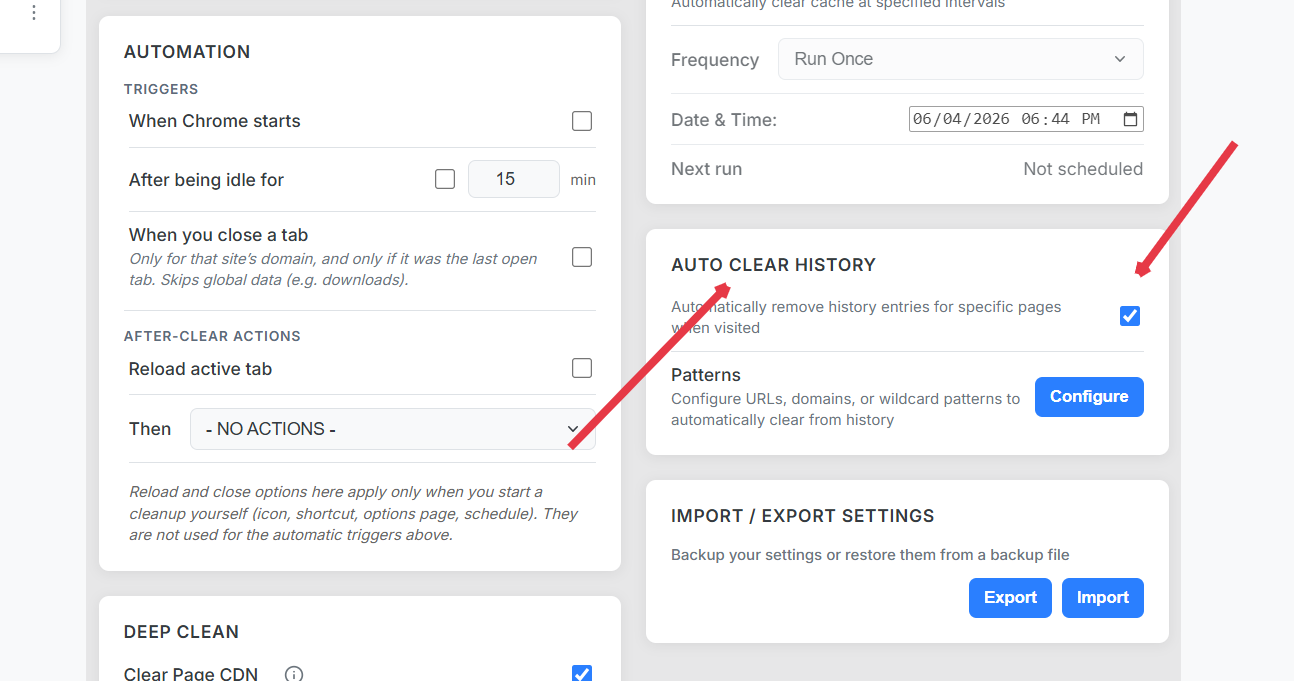
Configure surgical history cleaning
Define target domains or URL patterns.
Enable history in the data-type selection.
Choose trigger: manual, tab closed, or scheduled.
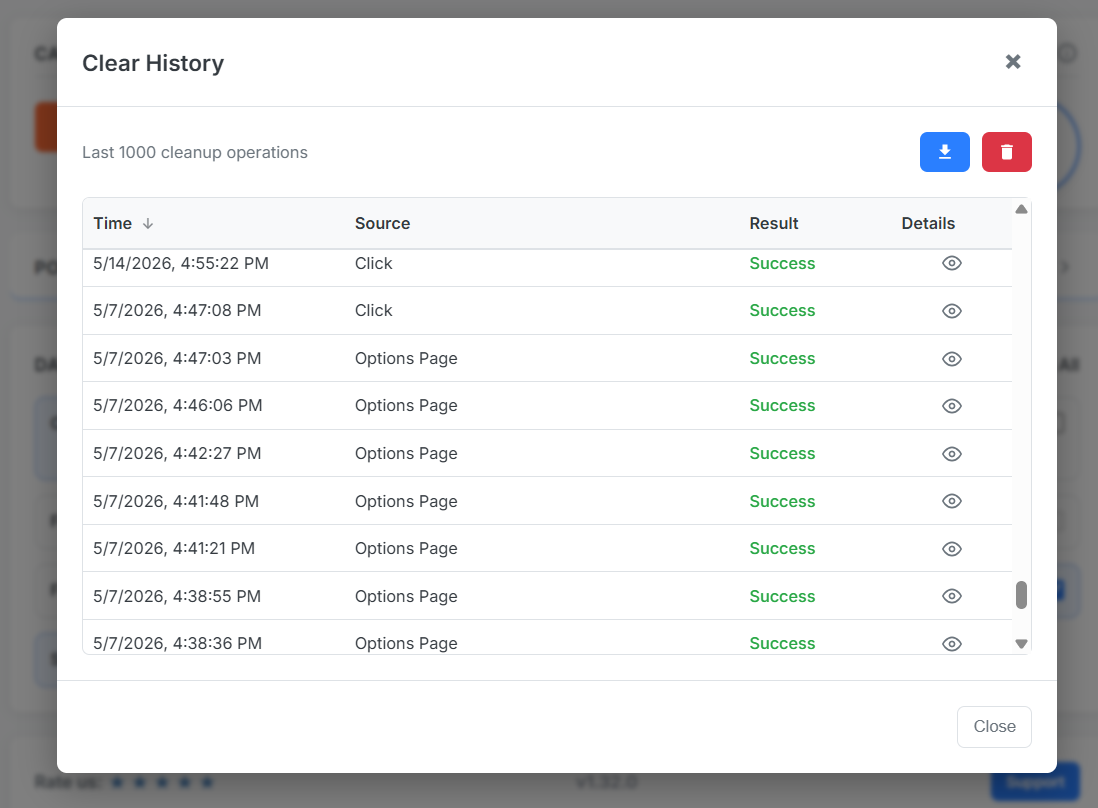
Verify in transparency logs which URLs were removed.
Logs confirm exactly which history entries were deleted.
Auto-clear history on tab close
When a sensitive tab closes, history for that origin can be purged automatically — no reminder needed. Pair with tab-closed automation for cache and cookies too.
Surgical history delete extension vs. extensions that clear everything
Broad cleaners optimize for speed. Surgical tools optimize for selective protection — the difference between losing your research trail and losing one domain's footprint.
Frequently Asked Questions
Can Chrome delete history for one site automatically?
Chrome's built-in settings wipe all history or none. Clear Cache Chrome supports domain-scoped history deletion on schedule or on tab close.
Will surgical history delete affect other sites?
No. Only URLs matching your configured scope are removed from history.
Is this the same as incognito mode?
Incognito avoids recording history per session. Surgical cleaning removes traces after the fact while keeping normal browsing convenience on other sites.