How to Clear ChatGPT Cache in Chrome (Fix Login & Chat Errors)
Clear Cache Chrome · Tech Product Partners KFT.
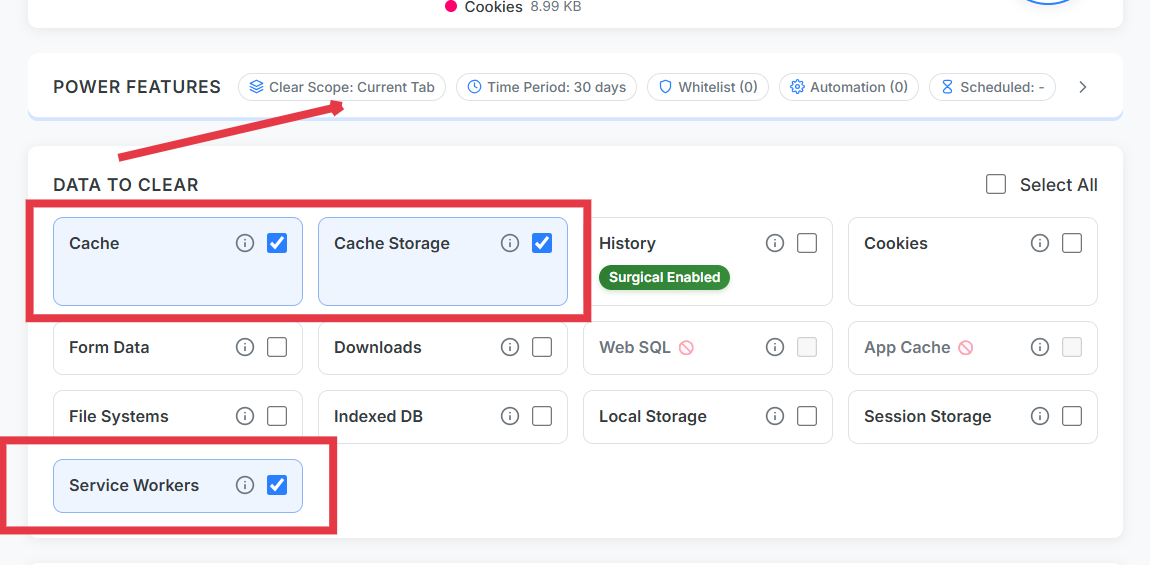
To clear ChatGPT cache in Chrome, open chatgpt.com, run Clear Cache Chrome with Current Site scope, enable cache storage and service workers, then reload. This fixes most login loops and stale UI without touching other sites.
Common ChatGPT Chrome symptoms
Infinite login redirect loop
Blank chat area after update
Extensions panel not loading
Old UI version after OpenAI ships changes
These are classic service worker + cache storage problems — not account bans.
Clear ChatGPT cache: step-by-step
Navigate to chatgpt.com (or your regional domain).
Open Clear Cache Chrome → Current Site.
Enable: cache, cache storage, service workers, cookies (if login loop persists).
Run → tab reloads → sign in fresh.
Target chatgpt.com only — other tabs untouched.
When to also clear cookies
If auth still loops, include cookies for current site once. Whitelist other domains first so work tabs stay signed in. Deeper dive: service workers guide.
Frequently Asked Questions
Why does ChatGPT get stuck on login in Chrome?
Stale service workers or corrupted cache storage on chatgpt.com often cause auth loops. Scoped clearing fixes it without reinstalling Chrome.
Will clearing ChatGPT cache delete my conversations?
Conversations live server-side on your account. Local cache clearing does not delete cloud history, though you may need to sign in again.
Do I need to clear all browser data?
No. Current-site scope limits the reset to chatgpt.com only.