

Why broad cache clearing breaks your workflow
Chrome's built-in Clear browsing data dialog is built for privacy sweeps, not precision. Developers and QA engineers run it mid-sprint and accidentally sign out of Jira, GitHub, staging dashboards, and client portals. According to Chrome Developer documentation, cache and cookies are separate storage layers — you do not have to wipe both globally.
Step-by-step: current-site cleanup
- Navigate to the site you want to reset (e.g. your staging app).
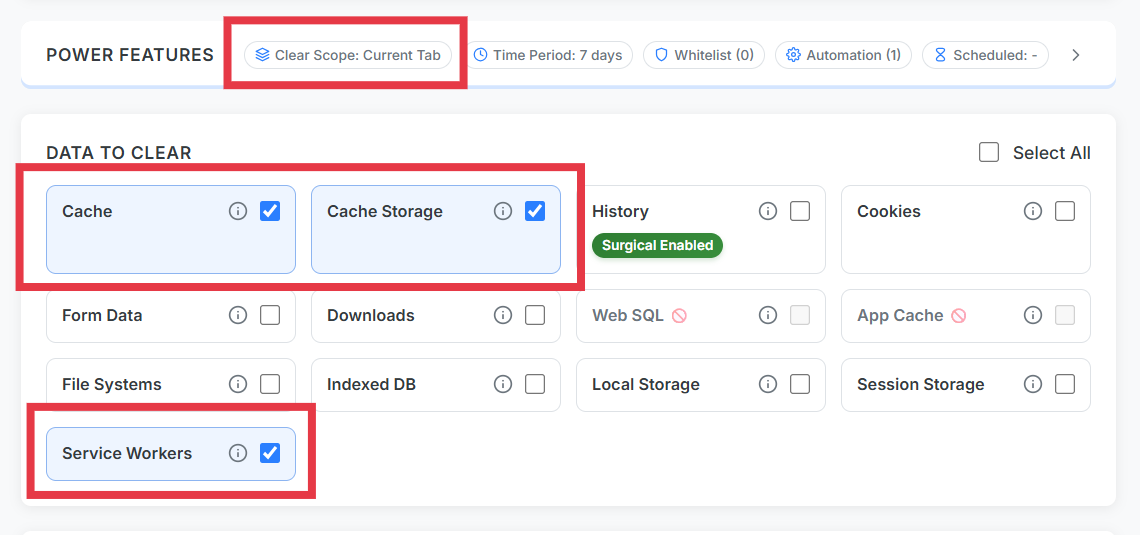
- Open Clear Cache Chrome from the toolbar.
- Select Current Site as the scope.
- Enable cache, cache storage, and optionally service workers.
- Run cleanup and reload the tab.
Whitelist protection for domains you must never touch
Add URL, domain, or wildcard rules for tools that must stay signed in — *.github.com, mail.google.com, client SSO portals. Whitelisted origins are skipped even during broader cleanup runs.
Does clearing cache delete passwords?
No. Passwords saved in Chrome's password manager live separately from HTTP cache entries. Clearing cache for a specific website in Chrome removes stale assets, not your credential vault. To avoid logout, keep cookies enabled or whitelist the domain.
When to use current site vs. all sites
- Current site: frontend dev refresh, QA repro steps, fixing one broken SPA.
- All sites: rare full reset — always review whitelist first.
Teams running 10+ resets per day save roughly 30–60 seconds per cycle versus opening Chrome settings. Over a sprint that is hours reclaimed.