How to Clear Cache and Cookies on a Chromebook (Fastest Methods)
Clear Cache Chrome · Tech Product Partners KFT.
On a Chromebook, clear cache and cookies via Settings → Privacy → Clear browsing data, or use Clear Cache Chrome for faster per-site cleanup without wiping every login. Chrome OS rewards scoped clears when storage is tight.
Why Chromebook users clear cache more often
Chrome OS devices often ship with 32–64 GB storage. Browser cache competes with Android apps and Linux containers. Clear cache chromebook is one of the highest-volume support searches because users feel sync and performance issues quickly.
Method 1: Chrome OS native clear
Chrome menu → Settings → Privacy and security.
Clear browsing data → choose time range.
Select Cached images and files / Cookies.
Confirm — affects all sites in profile.
Method 2: Extension precision (recommended)
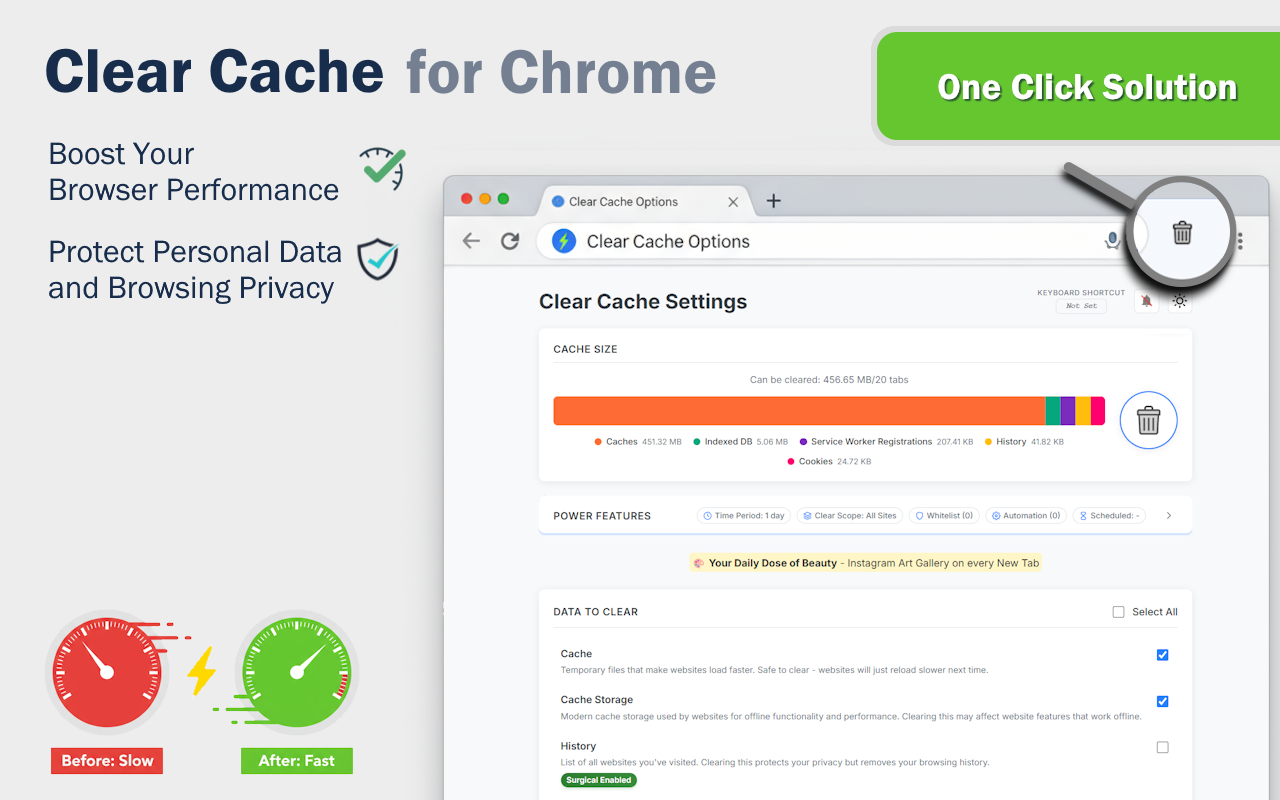
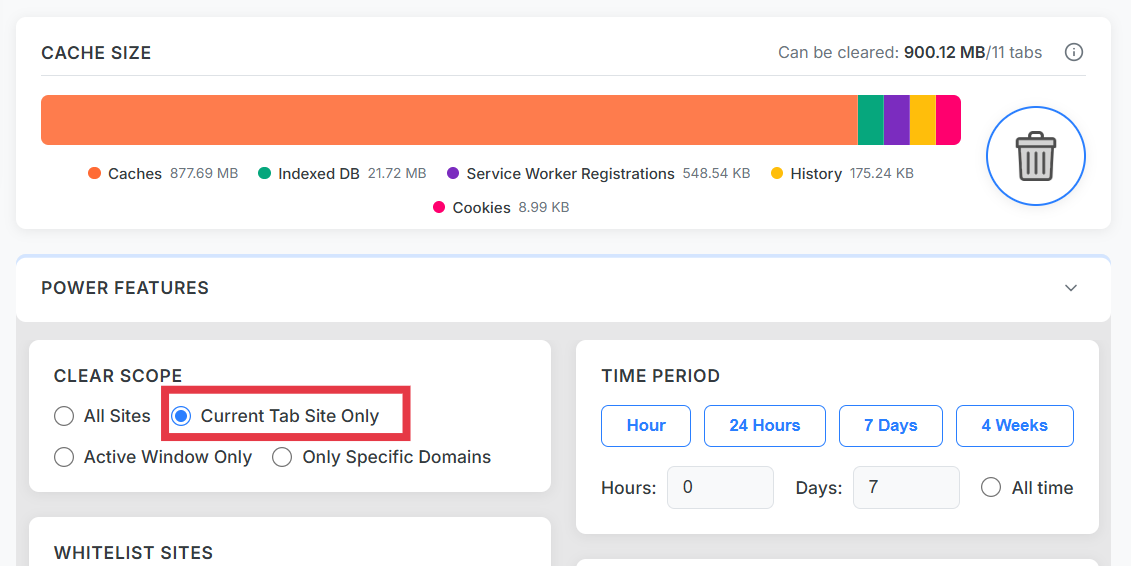
Install Clear Cache Chrome from the Chrome Web Store (works on Chrome OS). Use Current Site to fix one broken web app while school LMS and Gmail sessions stay active.
Per-site cleanup on Chromebook without full profile wipe.
Method 3: Hard refresh limitations
Shift+reload helps one request but won't clear service workers. For PWA-heavy school and enterprise portals, use a full scoped reset — see service worker guide.
Frequently Asked Questions
How do I clear cache on a Chromebook quickly?
Ctrl+Shift+Delete opens Clear browsing data. For single-site fixes, use Clear Cache Chrome with Current Site scope — fewer clicks, less collateral logout.
Will clearing cache fix Chromebook slowness?
Often yes when disk cache is full. Chromebooks with limited storage benefit most from regular scoped cleanup.
Does clearing cookies log me out on Chromebook?
Clearing all cookies does. Scoped cleanup lets you clear cache only and stay signed into Google Workspace and other tabs.